

UniTS VPN with eduVPN
This page guides you through installing and using the eduVPN app to connect to the VPN of the University of Trieste. The app automatically configures the connection using the WireGuard protocol and independently handles renewing the configuration when needed.
Credentials: access is via institutional authentication (Microsoft login). Where required, enter your username in the format <username>@ds.units.it and the corresponding password.
Before you start: make sure you have a working Internet connection and that the device date and time are correct. If you have enabled multi-factor authentication (MFA), keep your configured verification method at hand (Microsoft Authenticator app, SMS, or OTP code).
Index
- General setup
- Windows
- macOS
- iOS (iPhone / iPad)
- Android
- Linux
- Notes and expected behavior
- Troubleshooting
General setup
This section is intended for those who are already familiar with installing applications. If you prefer a detailed step-by-step guide, go directly to the section for your operating system.
⚠️ Pay attention to the access mode: when starting eduVPN, you may be offered two options: “Institute Access” and “Secure Internet”. To connect to the UniTS network you must always choose “Institute Access”. The “Secure Internet” option does not provide access to the University’s internal resources.
- Download and install the eduVPN app: use the direct link for your operating system in the dedicated sections below, or visit eduvpn.org/client-apps/.
- Start eduVPN. If you are prompted to choose a mode, select “Institute Access”, then search for and select University of Trieste.
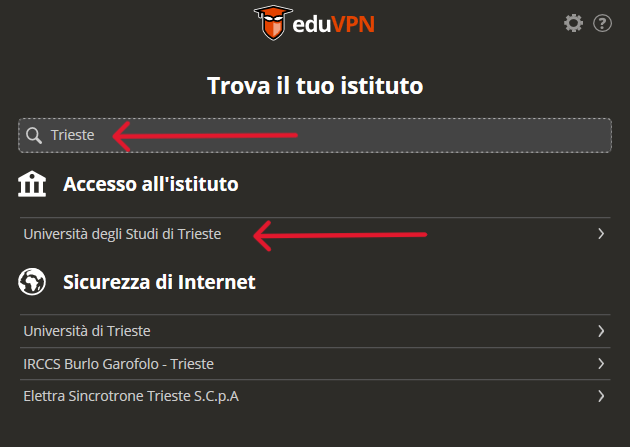
- The app will automatically open a browser window for authentication. Do not close or cancel this window: complete the Microsoft login using your username in the format
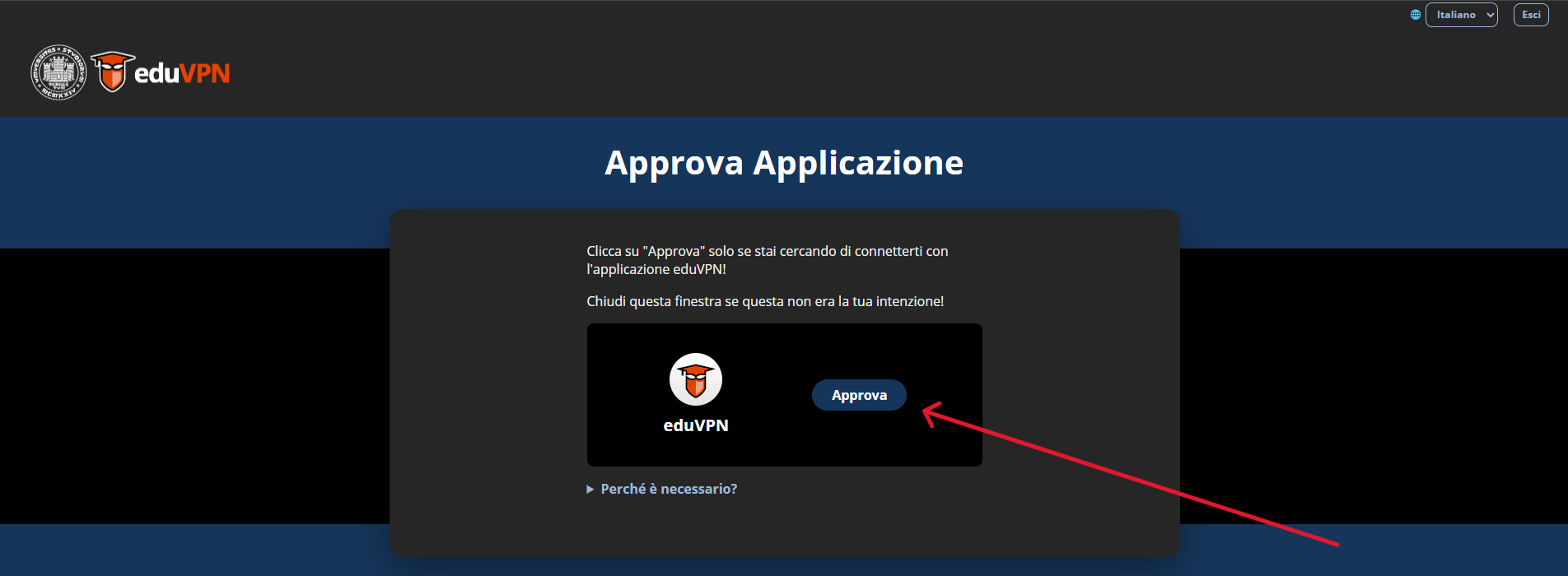
<username>@ds.units.it. - If a screen appears asking you to approve the application, click Confirm / Accept: this step authorizes eduVPN to receive the VPN configuration profile from the University.
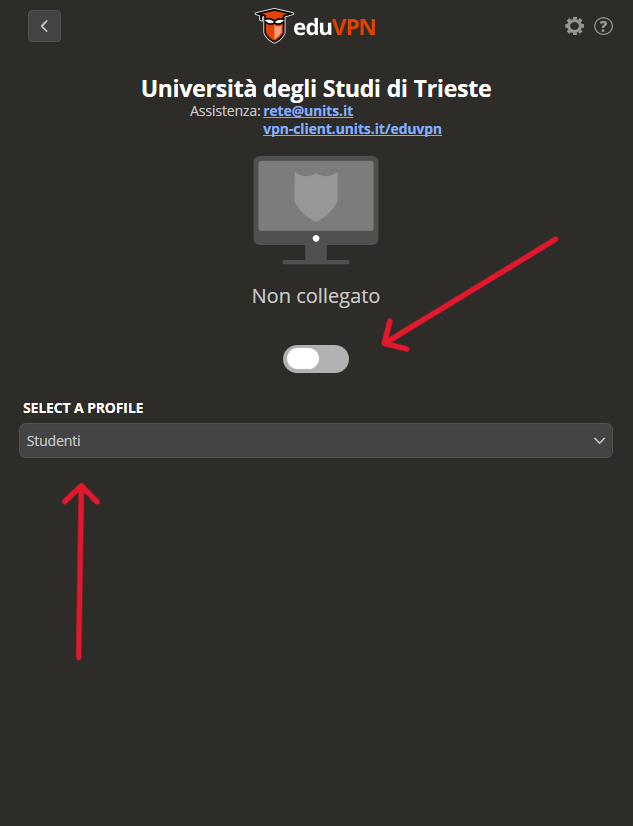
- Return to the eduVPN app, select the available profile, and click Connect. At the first connection, the operating system may ask you to authorize a VPN configuration: confirm to proceed.
- Status will change to Connected. When finished, click Disconnect.
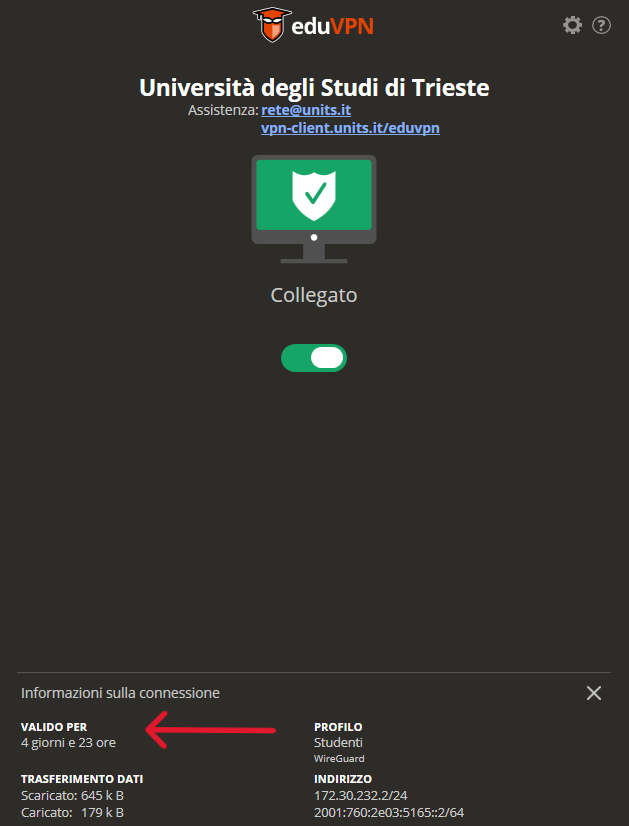
💡 Profile duration: the VPN profile remains valid for 5 days as shown in the screenshot. When it expires, eduVPN will simply ask you to repeat the browser login to get an updated profile — there is no need to reinstall or reconfigure anything.
Recommendation: keep the app up to date. On computers (Windows/macOS/Linux), you may be asked to confirm the installation of network components and, in some cases, to enter the device administrator password.
If access remains “pending”, check that the browser is not blocking pop-ups or third-party cookies and that the eduVPN app stays open in the background throughout the entire login process.
Windows
📥 Download: eduVPN for Windows (.exe installer)
- Install and start eduVPN. If Windows shows a UAC prompt “Do you want to allow this app to make changes to your device?”, click Yes.
- If you are prompted to choose a mode, select “Institute Access”, then search for and select University of Trieste.
- The app will open the browser: do not block it. Complete the Microsoft login with your username in the format
<username>@ds.units.it. - If the application approval screen appears, click Confirm / Accept.
- Return to eduVPN, select the profile, and click Connect. If Windows Firewall prompts appear, click Allow.
- To end the session, click Disconnect.
Note: proceed with installation only if you are using the official channels indicated above.
macOS
📥 Download: eduVPN on the Mac App Store.
- Install and start eduVPN. If you are prompted to choose a mode, select “Institute Access”, then search for and select University of Trieste.
- The app will open the browser. Complete the Microsoft login with your username in the format
<username>@ds.units.it. - If the application approval screen appears, click Confirm / Accept.
- Return to eduVPN, select the profile, and click Connect. At the first connection, macOS will show the message “eduVPN would like to add VPN configurations”: click Allow and, if required, enter the Mac administrator password.
- To end the session, click Disconnect.
iOS (iPhone / iPad)
📥 Download: eduVPN on the App Store. Requires iOS 16 or later.
- Install and open eduVPN. If you are prompted to choose a mode, select “Institute Access”, then search for and select University of Trieste.
- The app will open the browser. Complete the Microsoft login with your username in the format
<username>@ds.units.it. - If the application approval screen appears, click Confirm / Accept.
- Return to eduVPN and click Connect. A system message will appear: “‘eduVPN’ would like to add VPN configurations”: click Allow and confirm with passcode, Face ID, or Touch ID.
- To end the session, click Disconnect.
Android
📥 Download: eduVPN on Google Play — or, on devices without Google Play (e.g., GrapheneOS), via F-Droid.
- Install and open eduVPN. If you are prompted to choose a mode, select “Institute Access”, then search for and select University of Trieste.
- The app will open the browser. Complete the Microsoft login with your username in the format
<username>@ds.units.it. - If the application approval screen appears, click Confirm / Accept.
- Return to eduVPN and click Connect. Android will show a “Connection request” to allow the app to route network traffic: click OK / Allow.
- To end the session, click Disconnect.
Linux
📥 Download: the installation procedure varies by distribution. Follow the up-to-date official instructions: docs.eduvpn.org/client/linux/installation.
Once the app is installed, the steps are as follows:
- Start eduVPN. If you are prompted to choose a mode, select “Institute Access”, then search for and select University of Trieste.
- The app will open the browser. Complete the Microsoft login with your username in the format
<username>@ds.units.it. - If the application approval screen appears, click Confirm / Accept.
- Return to eduVPN and click Connect. In some desktop environments, a privilege request via PolicyKit will appear: enter your system password to allow creation of the VPN interface.
- To end the session, click Disconnect.
Notes and expected behavior
🔄 Credential expiration: the VPN profile is valid for 5 days. When it expires, eduVPN will simply ask you to repeat the browser login — there is no need to reinstall or reconfigure anything.
📶 Networks that block UDP: in some networks (corporate, hotels, public hotspots) UDP traffic may be filtered. In these cases, eduVPN automatically switches to an alternative method (WireGuard over TCP/HTTPS), without any action required on your part.
Troubleshooting
If you run into problems, follow these steps in the order shown:
- Update the operating system and the eduVPN app, then restart the device.
- Try from a different network (e.g., mobile hotspot) to determine whether the issue is with the local network or with the configuration/account.
- If the connection appears “active” but you cannot reach internal services, Disconnect and then Connect again.
- If eduVPN asks for credentials again, use the username format
<username>@ds.units.it. - If the organization is already configured but the connection does not start, remove and add the organization again in the app and repeat the browser login procedure.
- Check that during login the browser correctly returns to the eduVPN app after you complete the approval. If it does not, it may be blocked by a pop-up blocker or by third-party cookie restrictions.
📬 Still having problems? Contact technical support:
Include in your request: operating system and version, eduVPN app version, steps already performed and the full error message (if present).
Technical reference documentation: docs.eduvpn.org.